
The Academia Module
The Academia module is dedicated to learning activities and hands-on work. It offers a range of functions that let learners set their goals and document their learning journey.
The central capsule is made up of five capsules, each serving a different purpose, and can be linked to satellites tied to subject-specific competencies and cross-curricular competencies.

Adding an Activity
To add an activity to the workspace, simply tap the + capsule. A new capsule appears, dedicated to an upcoming or ongoing activity. To the left of this capsule, a series of steps, two communication tools and a document upload tool allow learners to gather evidence of their journey.
First, the user enters the title of the activity. The creation date and the user's name are added automatically when the new activity capsule opens. The Academia module fosters introspection and reflection, and encourages learners to surpass themselves.
Subject Areas
When learners click a subject area, the related subjects appear. They can then drag one of these capsules onto the central capsule, where the activity is defined — this attaches the subject capsule to the activity.
Languages
- English Language Arts
- French as a Second Language
Math, Science and Technology
- Mathematics
- Science and Technology
Social Sciences
- Geography
- History and Citizenship Education
- Contemporary World
- Financial Education
Personal Development
- Québec Culture and Citizenship
- Citizenship in the Digital Age
- Physical Education and Health
- Sexuality Education
Arts
- Drama
- Visual Arts
- Media Arts
- Dance
- Music
The Steps of the Learner's Journey
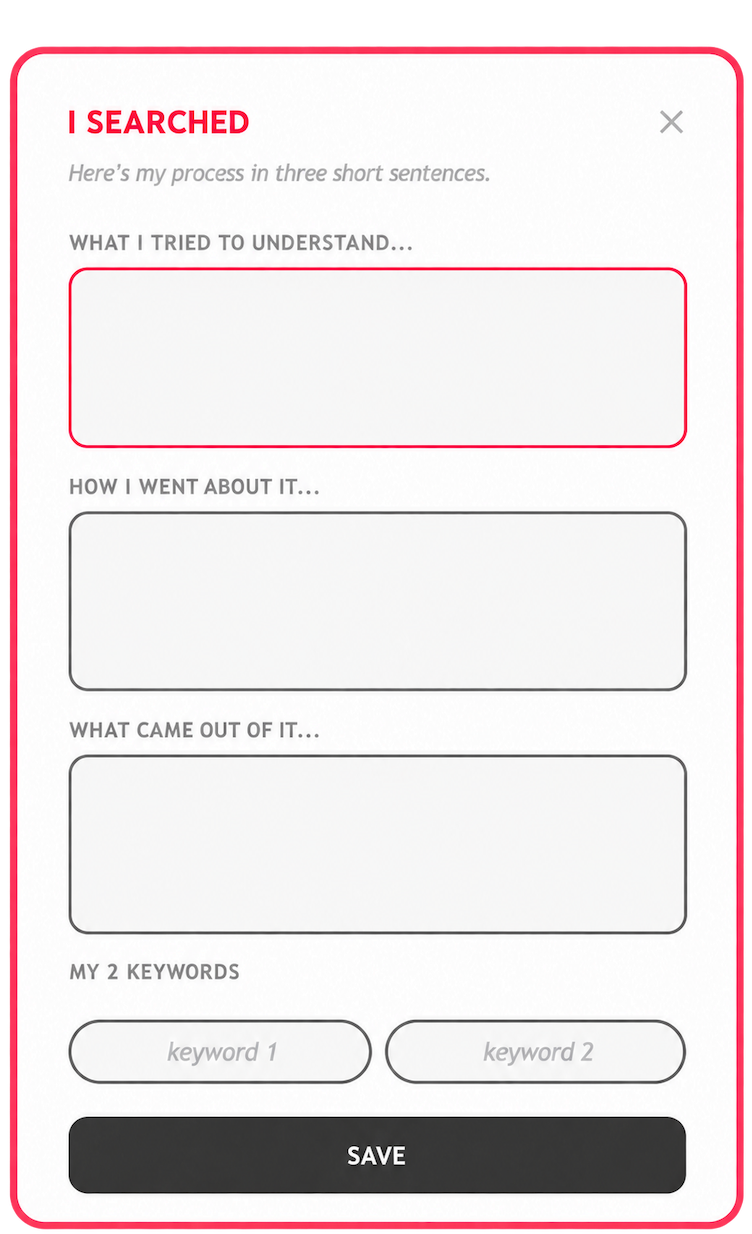
I Searched
Learners select this step to define how they will go about reaching the goal they set for themselves or the goal they were assigned. They should be able to show evidence of their progress with the appropriate documents stored in My Important Documents.
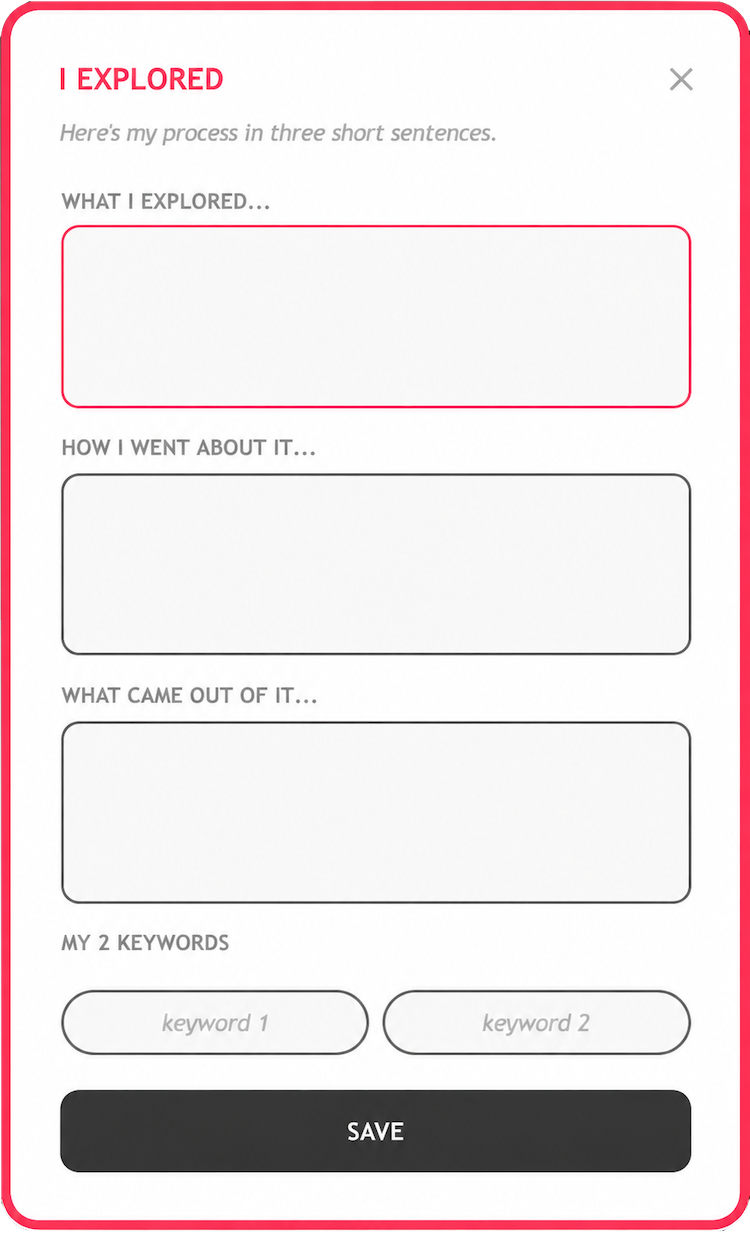
I Explored
Learners select this step to define how they will go about reaching the goal they set for themselves or the goal they were assigned. They can show evidence with the appropriate documents stored in My Important Documents.
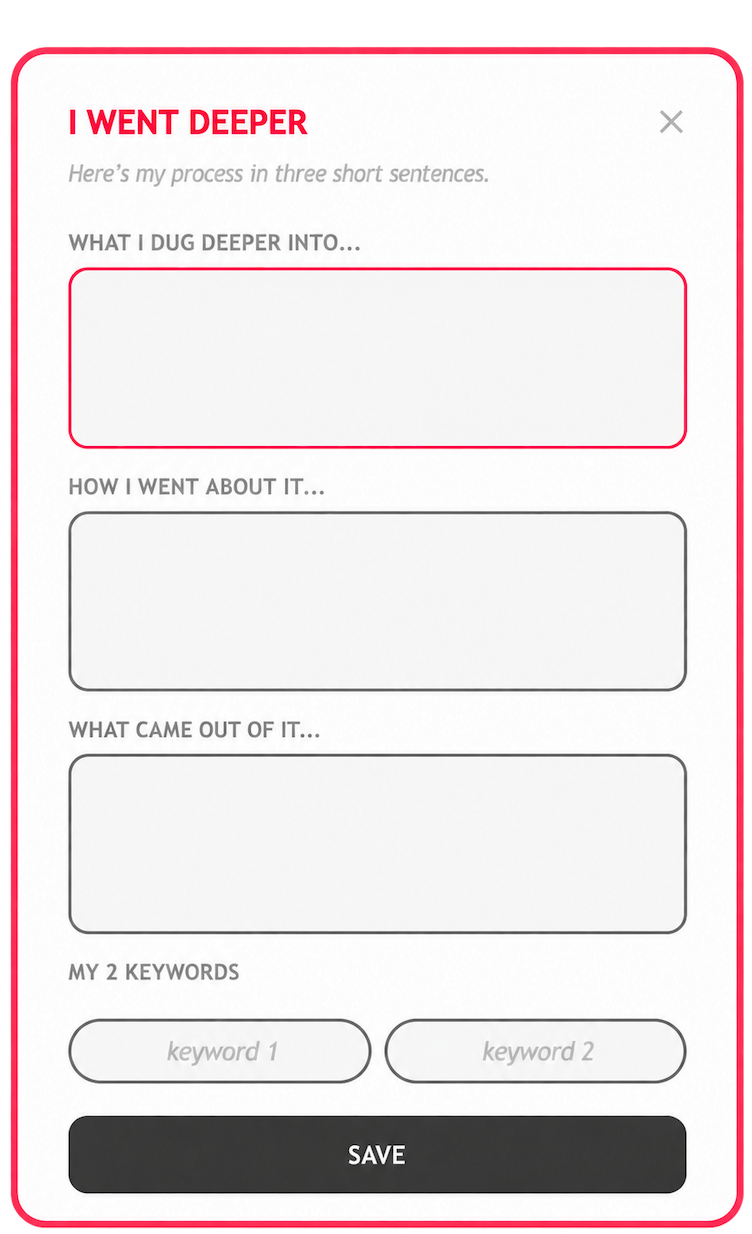
I Went Deeper
Learners select this step to define how they will go about reaching the goal they set for themselves or the goal they were assigned. They can show evidence with the appropriate documents stored in Activity Documents.
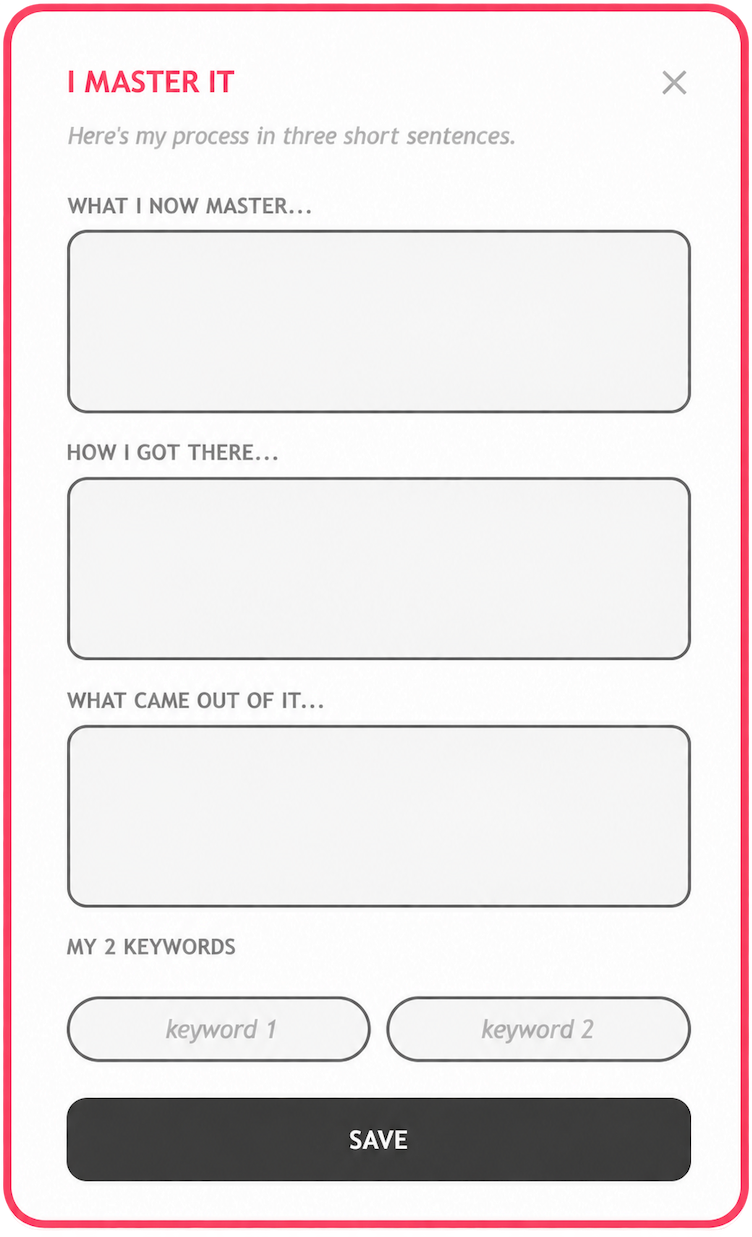
I Master It
Learners select this step once they judge that they have reached the goal they set for themselves or the goal they were assigned. They can show evidence with the appropriate documents stored in Activity Documents.
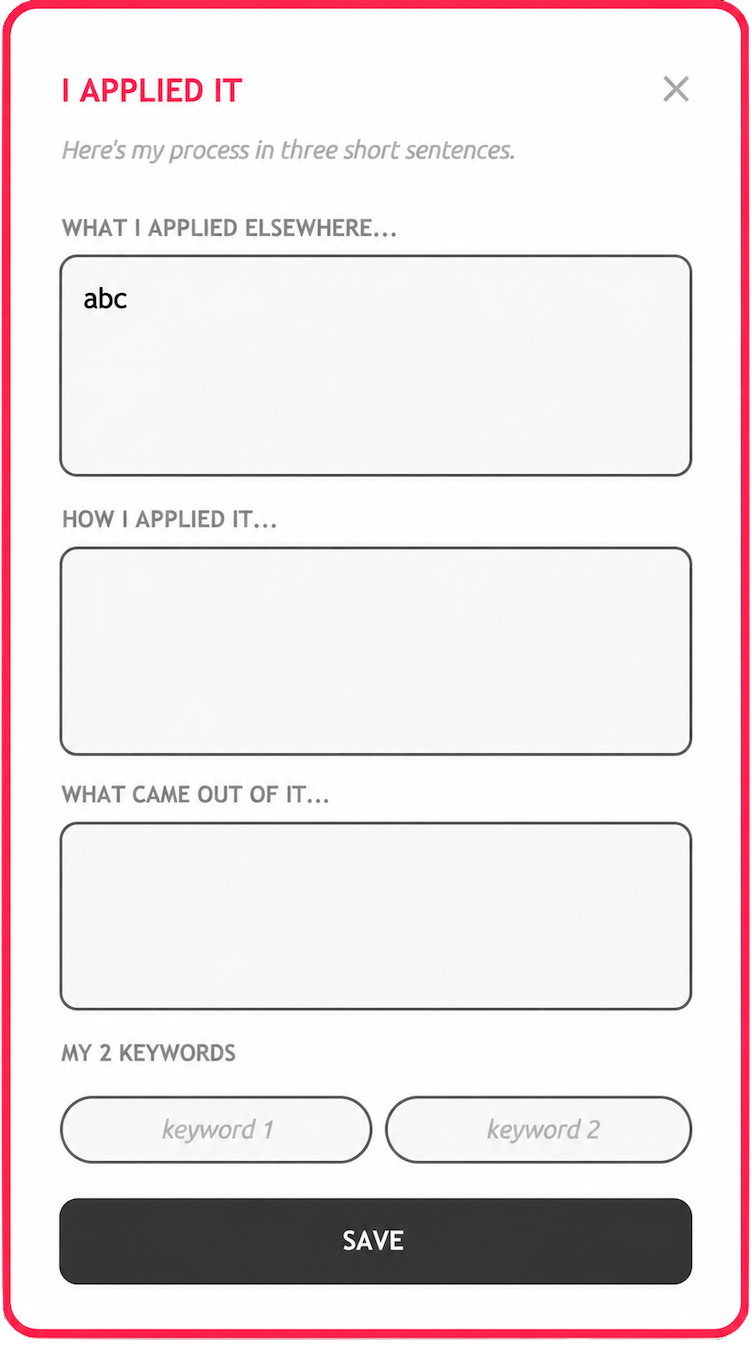
I Applied It
Learners select this step once they judge that they have reached the goal they set for themselves or the goal they were assigned. They can show evidence with the appropriate documents stored in Activity Documents.
The Activity at a Glance
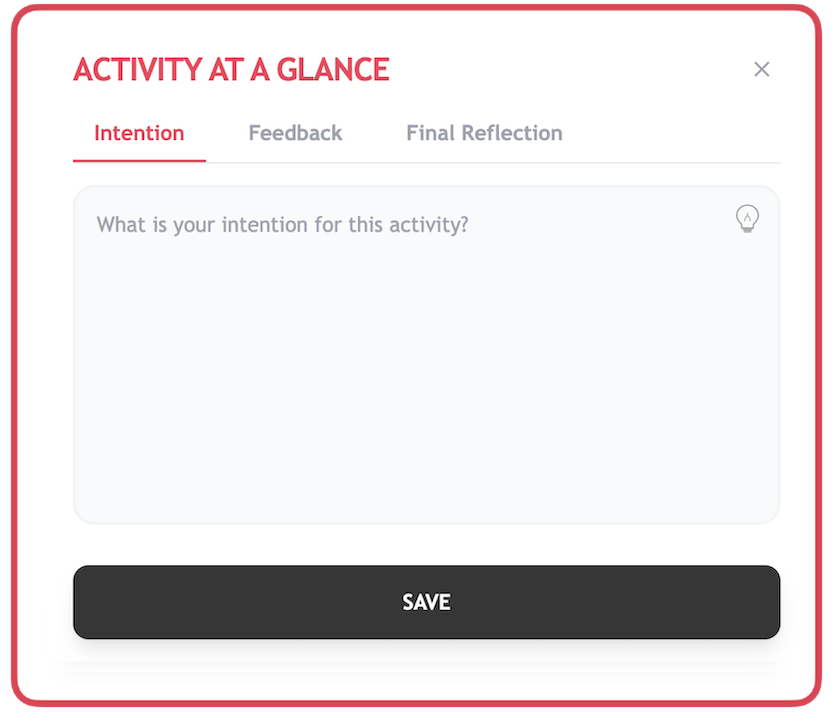
Intention
What do learners want to learn, and how do they plan to go about it? What will they do to make sure they are truly making progress?
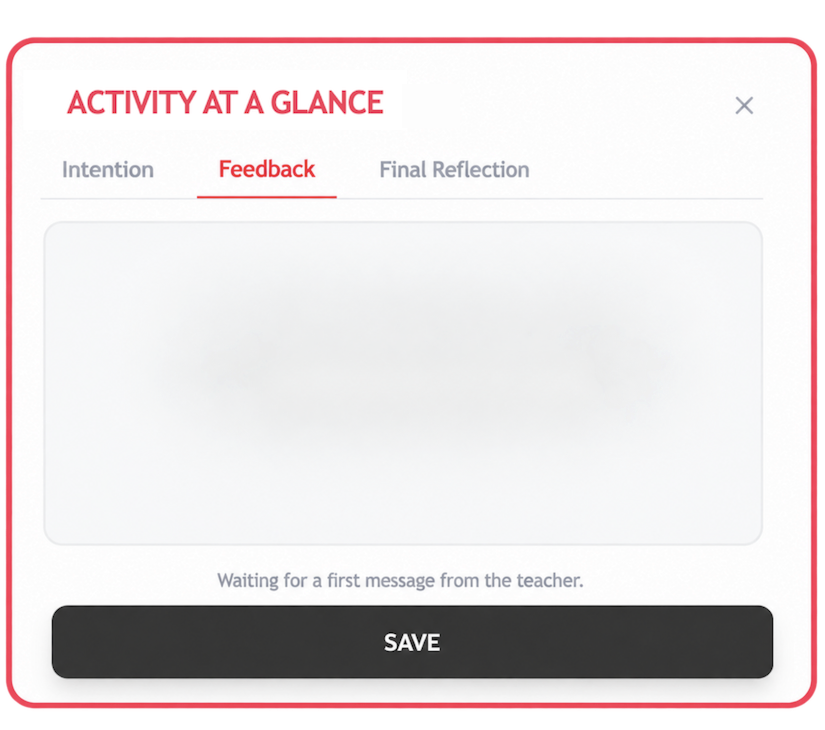
Feedback
In this section, teachers can ask questions related to the learner's project. They can also offer advice and make recommendations.
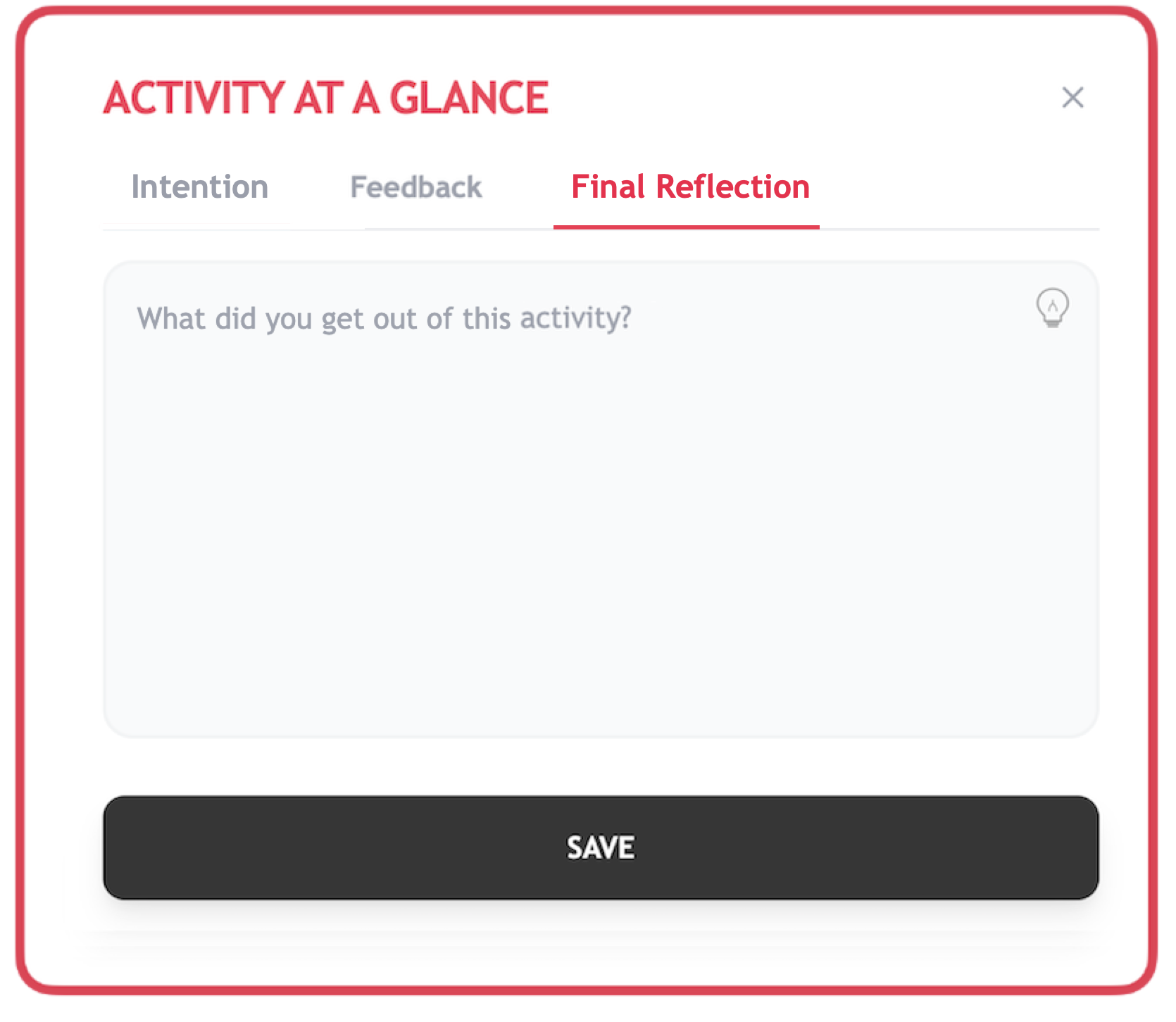
Final Reflection
Once the activity is completed, learners are invited to identify the strengths of their journey as well as the obstacles still to be overcome.
Staying in Touch and Keeping Evidence
Messages
It is important for learners to have easy access to others who can help them. Clicking the Messages icon opens two communication options: Google Chat and Microsoft Teams. A click on either one launches the corresponding app directly, letting learners reach a peer who can offer advice and expertise, or their teacher, in the context of their activity.
My Important Documents
This section is where learners keep evidence related to the activity — PDFs, images (jpg, png, gif), videos (mp4, mov, m4v, avi, mkv…) and audio (mp3, wav, m4a, aac…), up to 50 MB per file.
Report
At any time, students can create a PDF that summarizes their learning process. This document can then be sent to the teacher.
Extending into Projects
At any time, students can extend their activity into a project in the Projects module — a way to pursue their thinking from a different angle without losing track of the work already done. The link between the two remains visible and can be followed in both directions.
The Academia Capsule at a Glance
