
The Projects Module
The Projects module offers a range of functions that let learners set their goals and document their learning journey.
The central Project capsule comes with a toolbox of nine different tools and can be linked to satellites tied to subject-specific competencies, cross-curricular competencies and broad areas of learning.

Adding a Project
To add a project to the workspace, simply tap the + capsule. A set of tools anchored to the capsule appears.
First, the user enters the title of the project. The creation date and the user's name are added automatically when the new project capsule opens.
Subject Areas
This module fosters interdisciplinarity and openness to the world. When learners click a subject area, the related subjects appear — they can then drag one onto the central capsule to attach it.
Languages
- English Language Arts
- French as a Second Language
Math, Science and Technology
- Mathematics
- Science and Technology
Social Sciences
- Geography
- History and Citizenship Education
- Contemporary World
- Financial Education
Personal Development
- Québec Culture and Citizenship
- Citizenship in the Digital Age
- Physical Education and Health
- Sexuality Education
Arts
- Drama
- Visual Arts
- Media Arts
- Dance
- Music
The Nine Tools
Deadlines
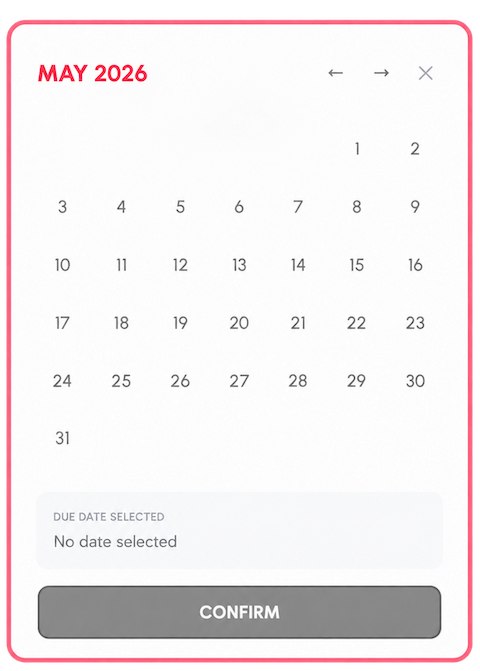
A calendar lets learners set the date by which they plan to finish their project — and change it at any time.
Associated People
A list of the names and email addresses of the people involved in the project.
Webography
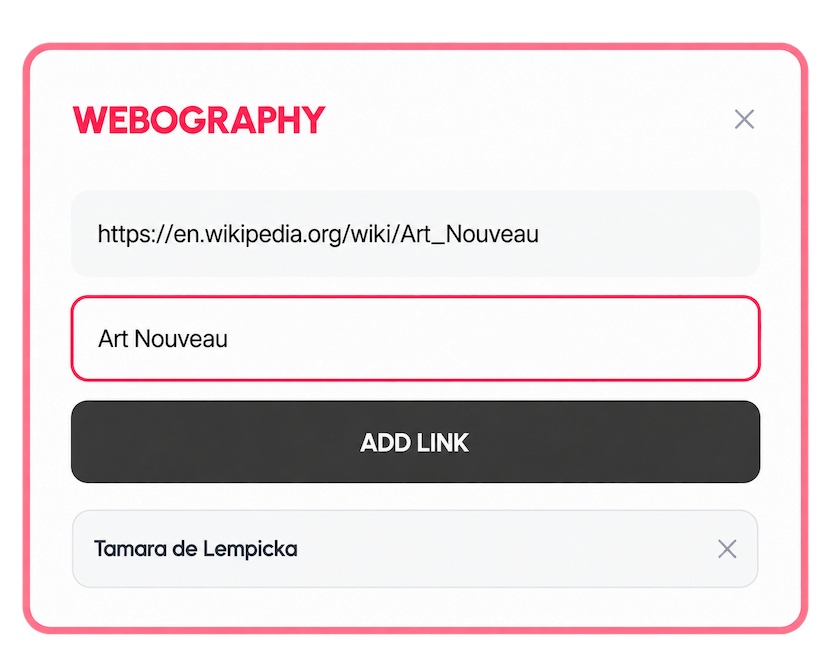
A list of websites relevant to the project, each with its URL and title, built up as research progresses.
Important Documents
PDFs, images, videos and audio files related to the project, up to 50 MB per file.
Photo Album
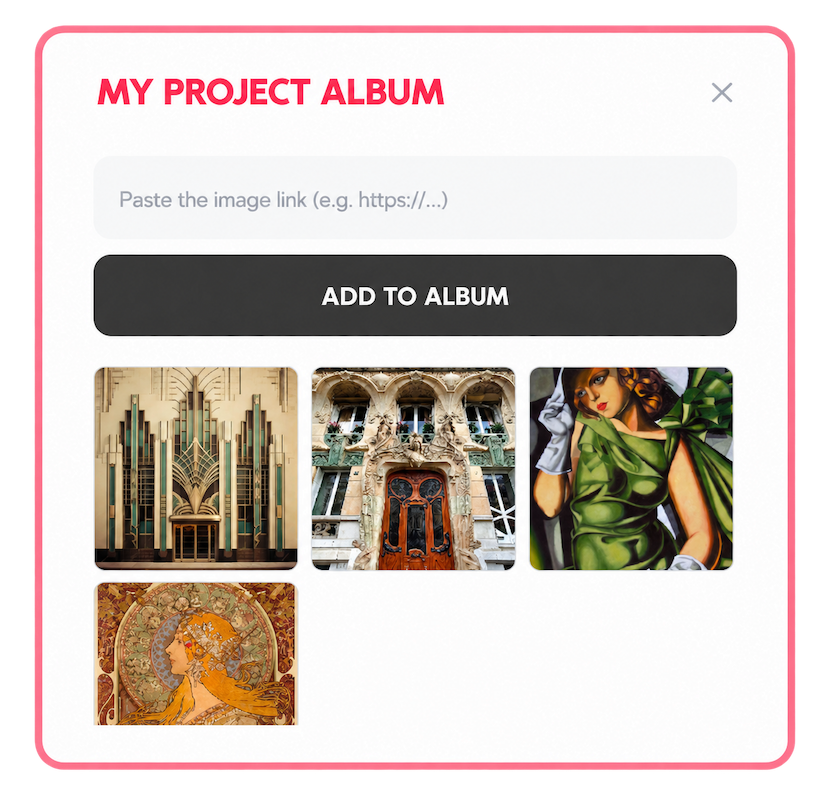
A space to create a photo album related to the project.
Video Clips
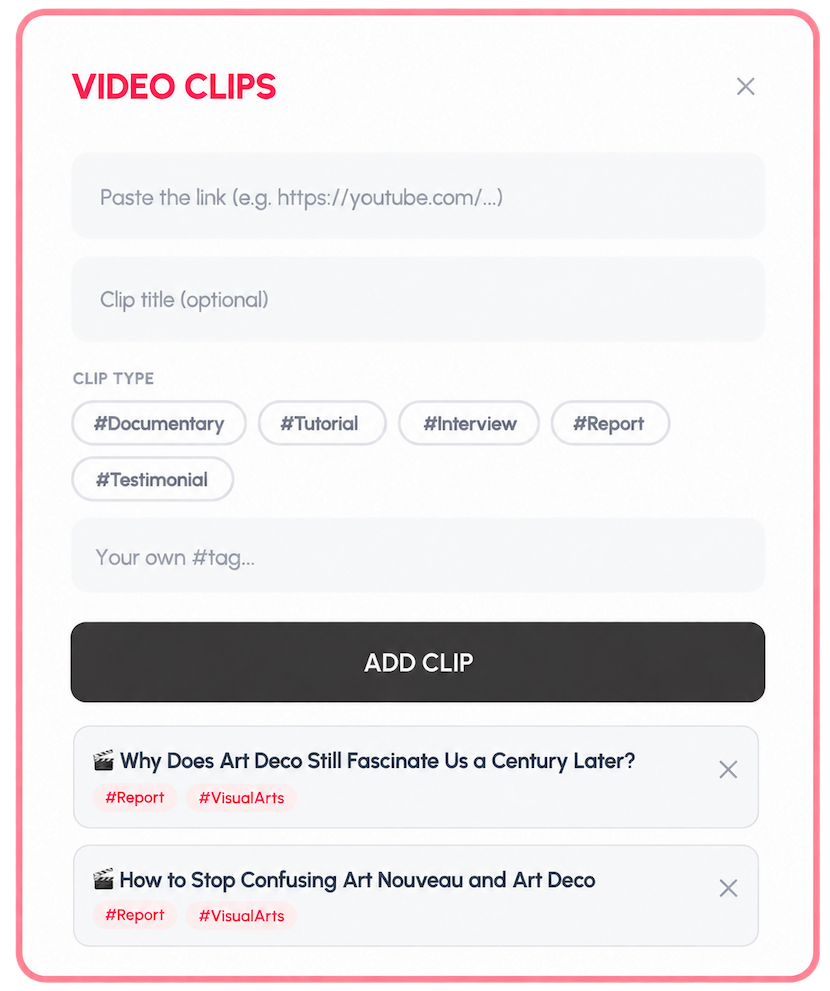
Relevant video clips, each with a title and hashtags — predefined or custom.
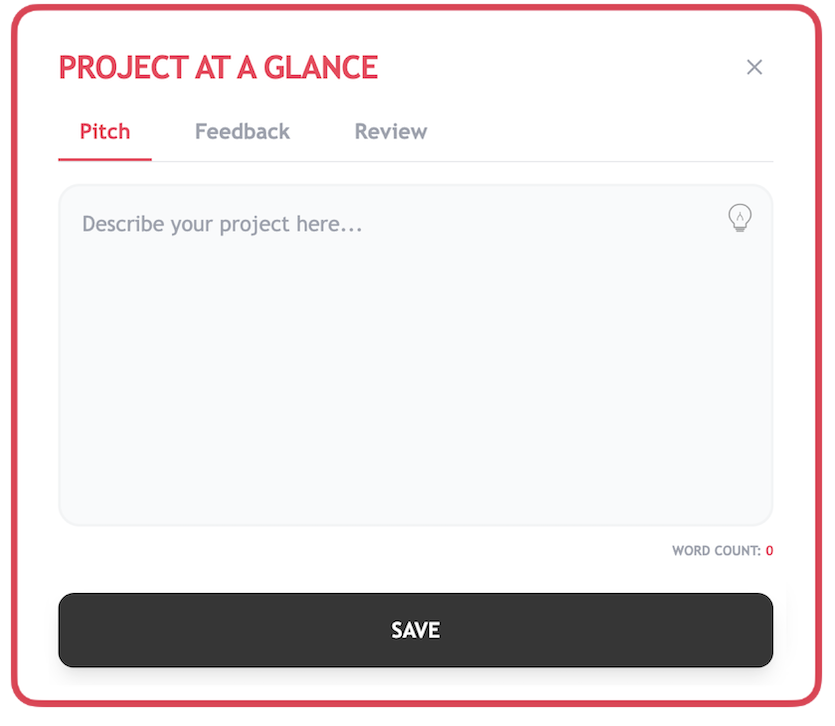
The Project at a Glance — Pitch, Feedback, Review
The pitch presents the idea briefly to spark interest. The feedback lets the teacher ask questions and give advice. The review invites learners, once the project is finished, to identify what they take away from it.
Messages
Direct access to Google Chat and Microsoft Teams to stay in touch with teammates and the teacher throughout the project.
Report
At any time, students can create a PDF that summarizes their learning process. This document can then be sent to the teacher.
Extending into Academia
At any time, students can extend their project into an academic activity in the Academia module — a way to pursue their thinking from a different angle without losing track of the work already done. The link between the two remains visible and can be followed in both directions.
The Project Capsule at a Glance
